Places a Host control in a window. Once configured with the appropriate assembly, class and parameters this allows a means of interaction with a specialised external component.
The dll component has to meet specific requirements in order to be able to be used as a host control.
Open the destination window to add the Control.
From the Toolbox, select the Label icon, move the pointer into the window and drag out the initial position and size for the control.
If the Property Editor is not displayed, click on Ribbon > Home > Property Editor
Click on the Control. The Properties for the control will appear in the Property Editor panel and allow changes to be made.
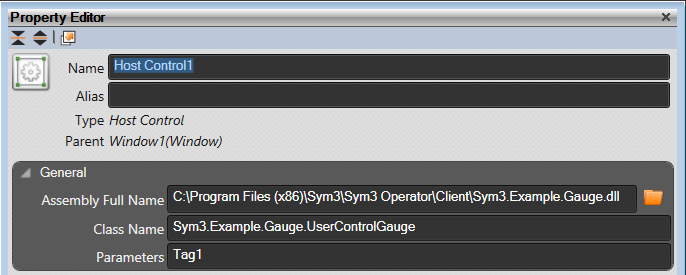
In the example above, the Sym3.Example.Gauge.dll is a custom written component to provide a slider. The dll is copied to the machine and linked to it via the Assembly name and Class name. These are specific to the component. In the example it reads the value from the value supplied by the tag Tag1. The dll does not need to be registered.
When an input box is added with a Binding Value of Tag1 and a new Tag added with name=Tag1 and data type=Byte then entering a value from 0 to 100 displays a percentage on the slider.

The component is loaded when the window is opened and remains in use until Sym3 is exited.
Name: Name of the control
Alias: Alias of the control
General:
Assembly Full Name: Use the Browse button to select the assembly component (dll) to load.
Class Name: Enter the class name for this control. Depends upon the component used.
Parameters: Enter any optional parameters (if required). Depends upon the component used. The example component takes the value it uses from a tag.
Layout: Defines the layout parameters for the control
X: X location in the window to place the control
Y: Y location in the window to place the control
Width: Width of the control
Height: Height of the control
Anchor: Which edge of the window the control is anchored to when the window is resized. See "Anchors"
Visual: The Visual category allows the user to configure the look and feel of the control.
Visible: Defaults to visible but untick if you wish this Control to be invisible.
Binding: The following properties of the Host Control may be bound to a tag. These will depend upon the component used.
Visible: